Alerts
Browse alerts on a floor map or in a list, filter them, and change their status.
Alerts
Open Alerts from the left menu. The page has two views, Grid and List.
Grid view
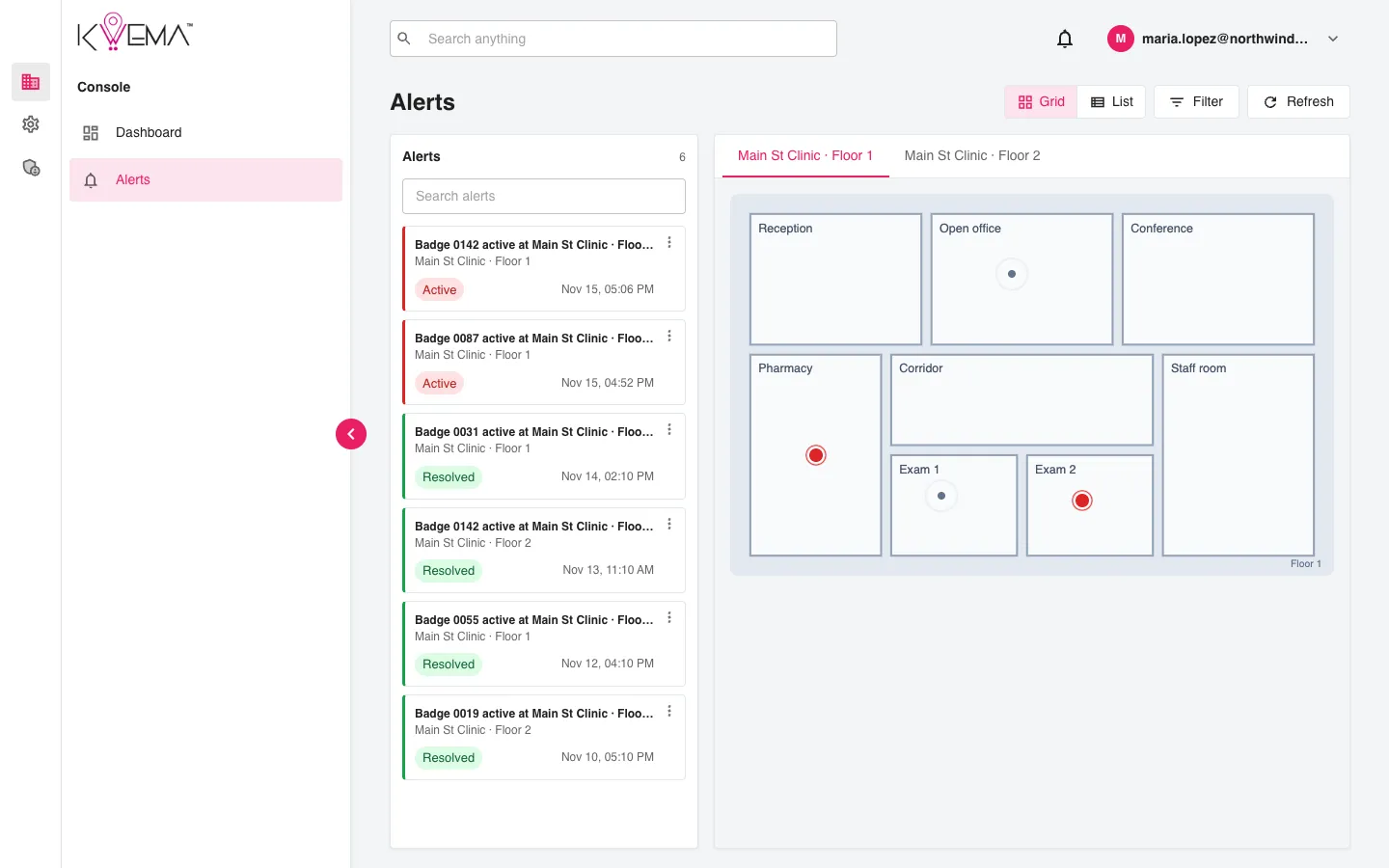
- The left column lists every alert. Red is active, green is resolved.
- Use Search alerts to filter by device or site.
- Select an alert to highlight it on the floor map. The map switches to the alert's floor.
- Open an alert's menu (⋮) and choose Change Status to resolve or reopen it without leaving the page. Select Confirm to apply.
- Double-click an alert to open its details.
List view
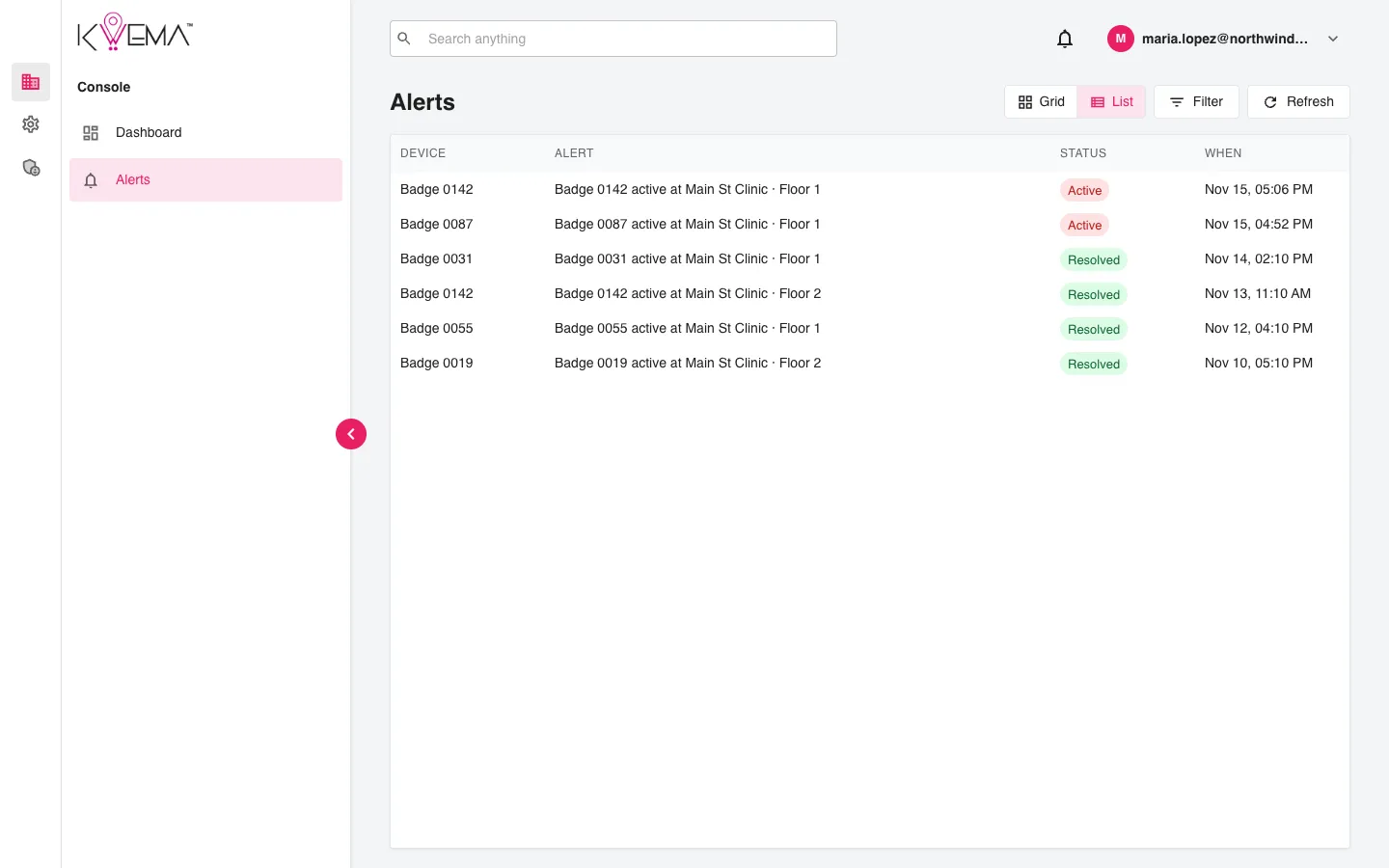
A table with device, alert, status, and time. Select a row to open its details.
Filter
Select Filter to show alerts from one day, one status, or both. Select Apply to filter or Clear to reset.
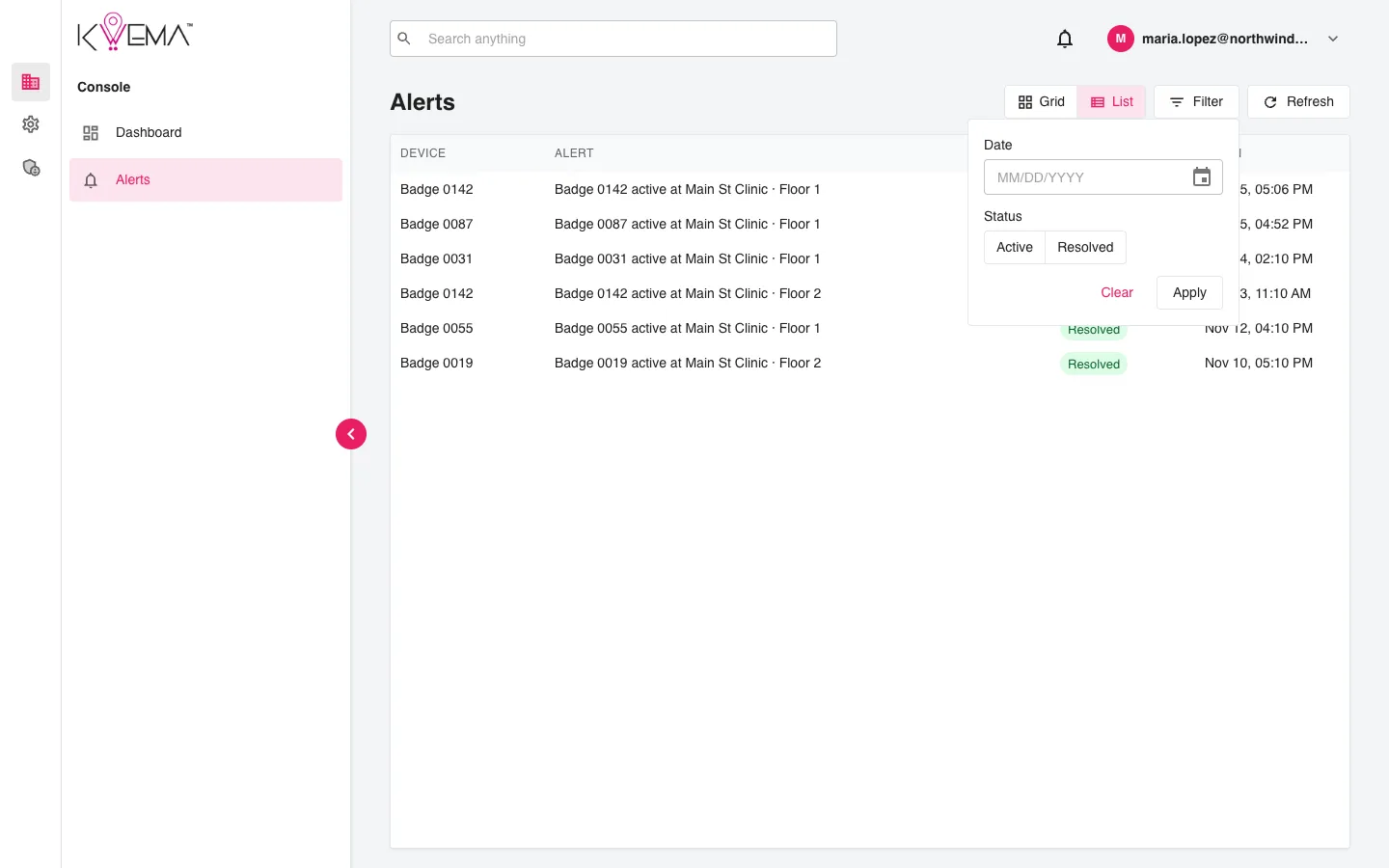
The button shows the active filter, for example Filter (Active, Nov 14, 2026).
Refresh
New alerts appear automatically. Select Refresh to reload now. Hover over it to see when the list last refreshed.
Alert sound and notifications
When a new alert arrives, the console plays an alarm and a notification appears under the bell at the top right.
- Select the bell to see recent alert notifications.
- Use Stop alert sound next to the bell to silence the alarm. The alarm also stops when the alert is resolved.