Alert details
Follow an alert's timeline, resolve it, mark it true or false, comment, and export a PDF.
Alert details
Open an alert from the dashboard or the Alerts page.
Details
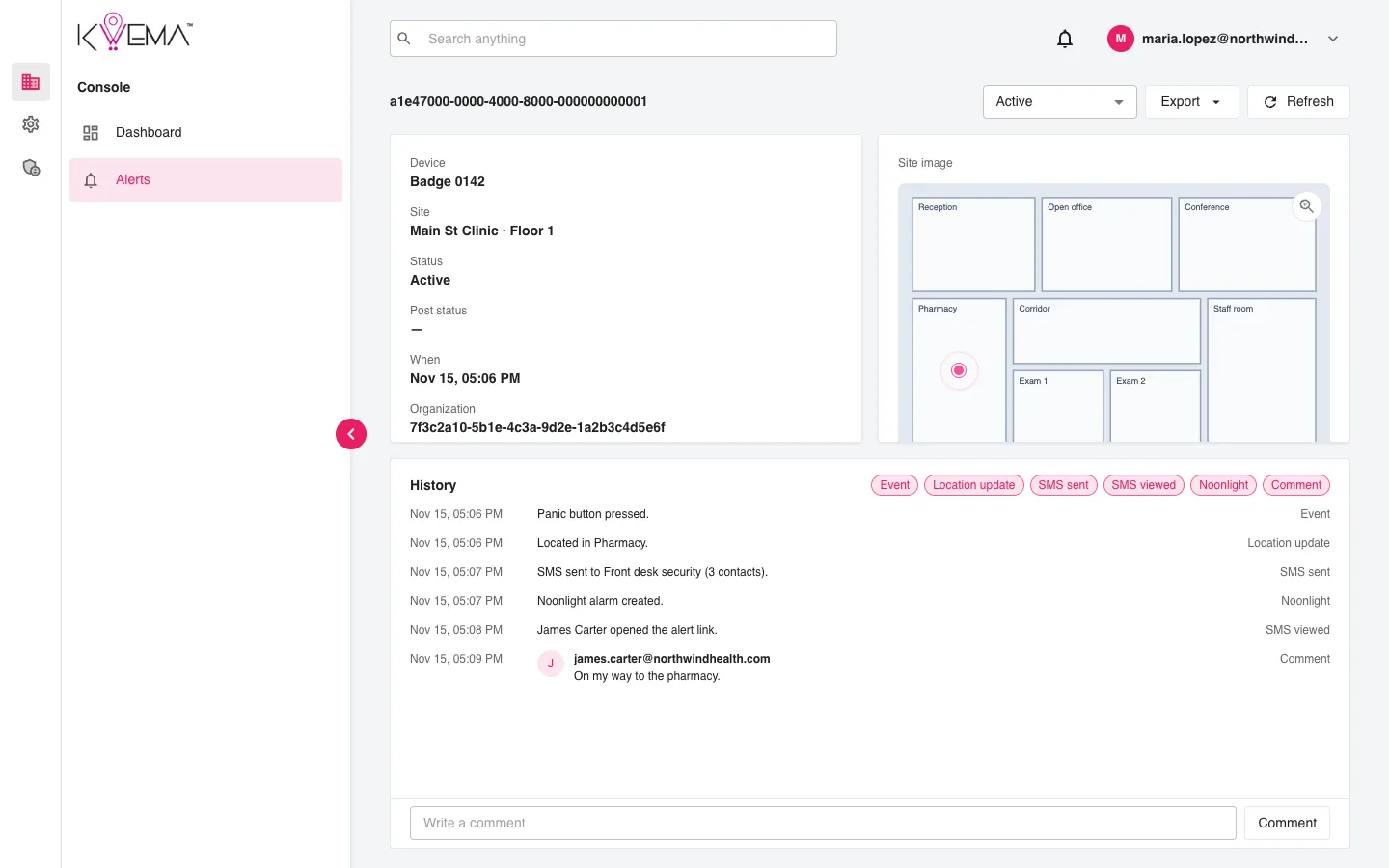
Device, site, status, post status, time, and the identifiers of the organization, object, coordinator, workflow, and source.
Site image
The floor map with the badge's last known position. Select the zoom button to open a larger view.
History
Everything that happened, in order:
| Kind | Meaning |
|---|---|
| Event | The alert was raised, its status changed, or it was resolved. |
| Location update | The badge was located on the floor map. |
| SMS sent | Contacts on the routed lists were texted. |
| SMS viewed | A contact opened the alert link in the SMS. |
| Noonlight | An emergency dispatch was created or updated in Noonlight. |
| Notification | Another notification was sent, for example a webhook. |
| Comment | A person wrote a comment. |
- Select the chips at the top right to show or hide a kind.
- Updates in real time means new events stream in as they happen. If you have scrolled up, a New events button takes you to the latest.
Comment
Type in Write a comment and press Enter or select Comment.
Change status
Choose Active or Resolved in the status menu at the top, then select Confirm. Resolving stops the alert sound.
Post status
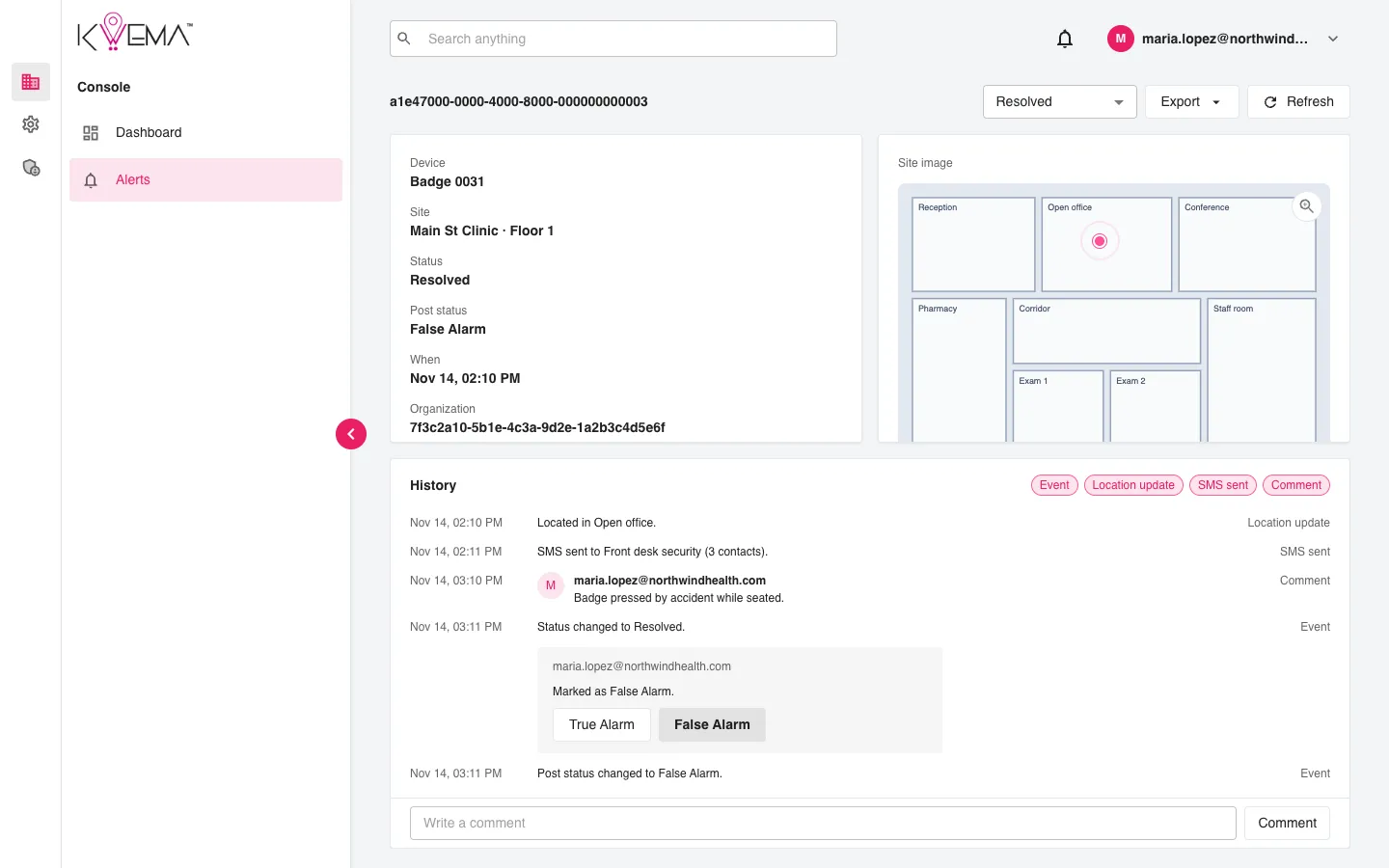
After an alert is resolved, the history asks whether it was a True Alarm or a False Alarm. Pick one. Changing an existing answer asks for confirmation. The answer feeds the dashboard's weekly counts.
Export as PDF
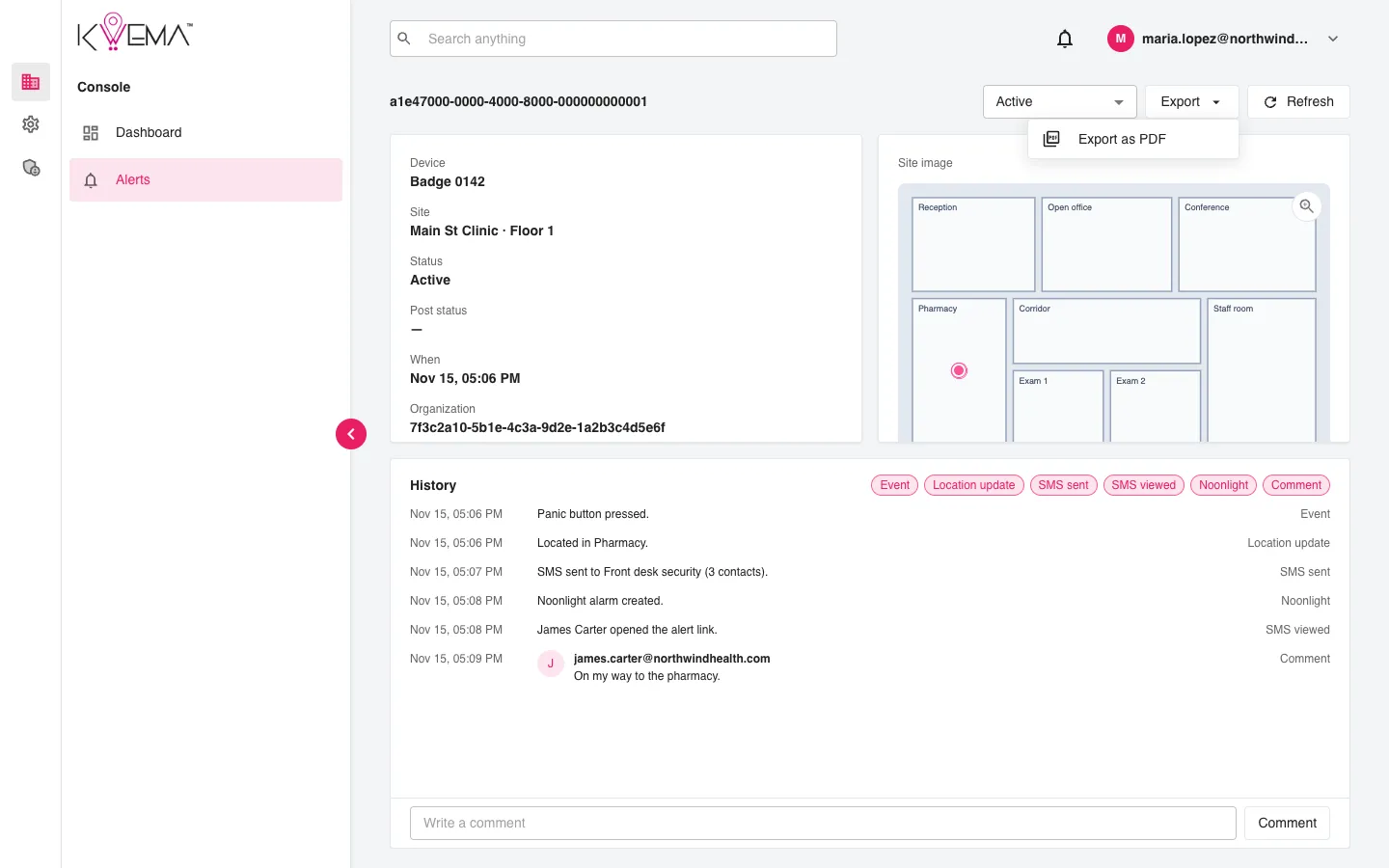
Select Export, then Export as PDF, to download a report of the alert and its history.